Start by voice.
「かいし」 starts a recording and 「しゅうりょう」 ends it. Change either keyword to 2–10 hiragana characters. Speech recognition stays on the device.
A recorder
you run by voice.
It starts on 「かいし」 and ends on 「しゅうりょう」.
Monitor, or record with one tap.

iPhone / iPad · iOS 18 or later

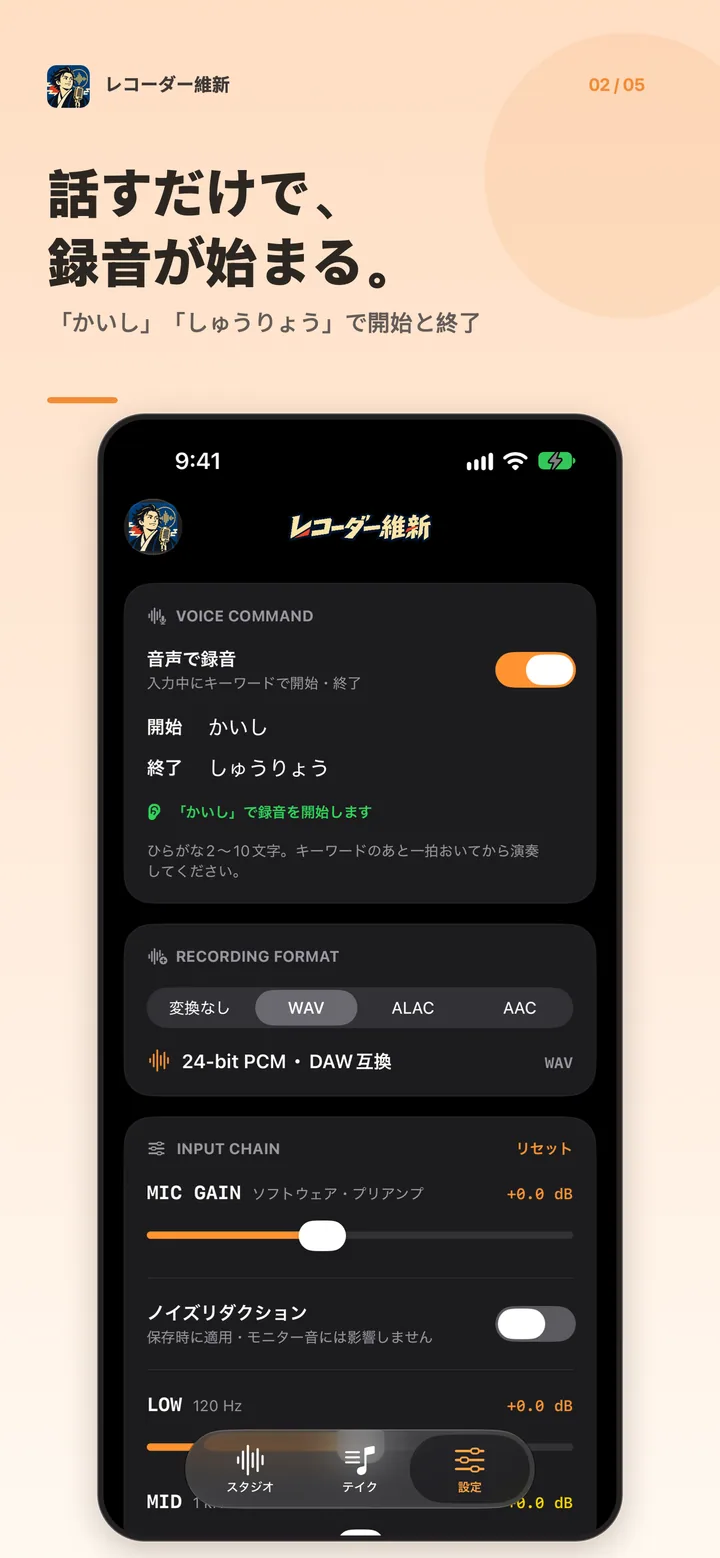
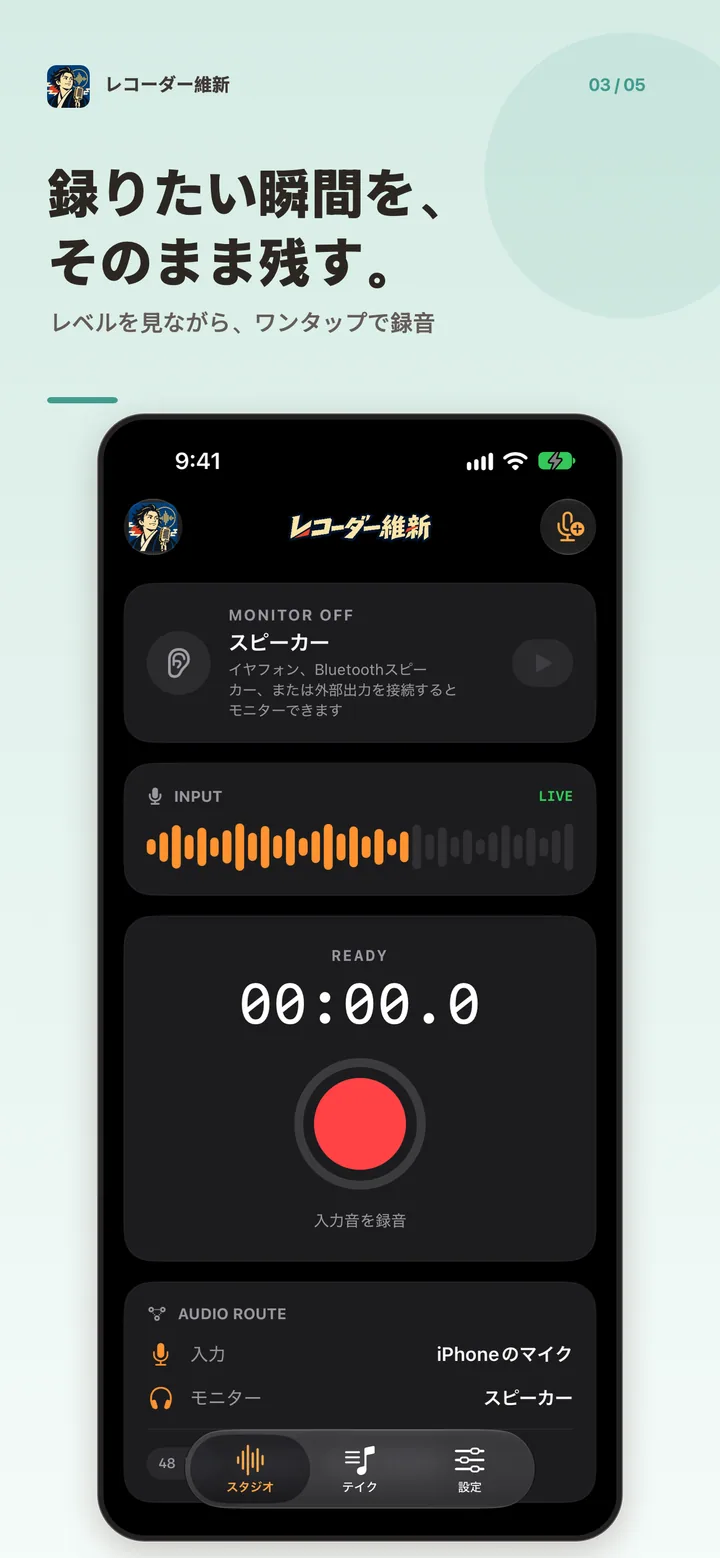
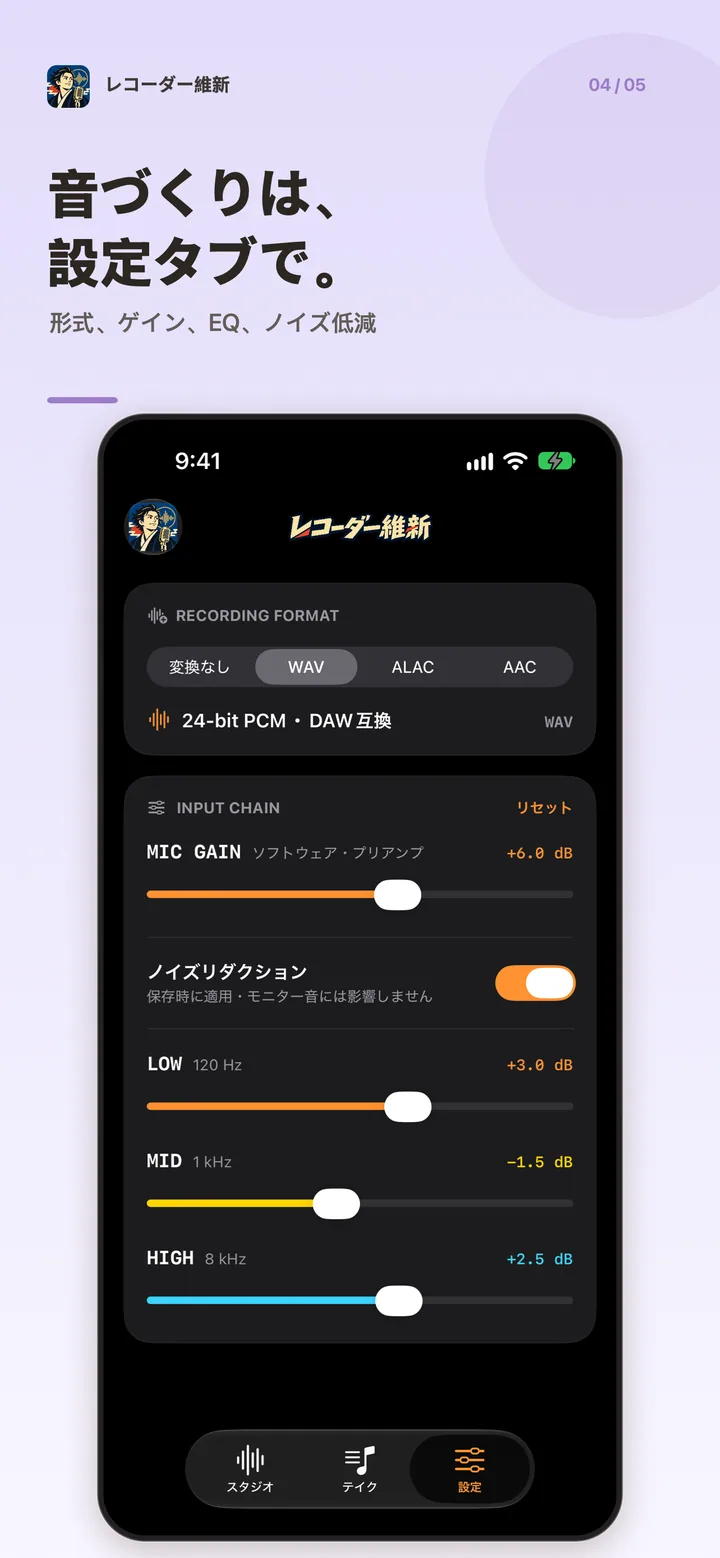
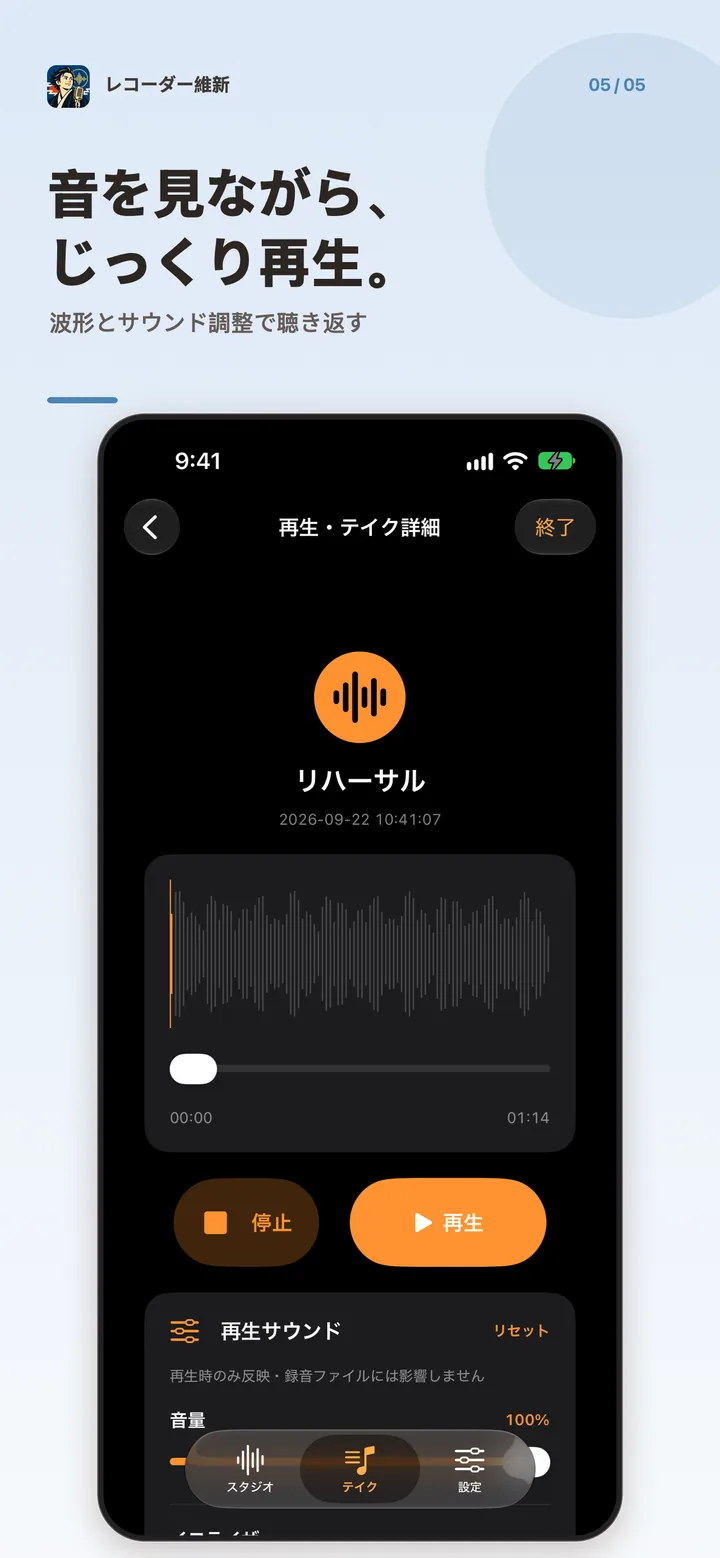
「かいし」 starts a recording and 「しゅうりょう」 ends it. Change either keyword to 2–10 hiragana characters. Speech recognition stays on the device.
Monitor the input through earphones and record with one button. Recording and monitoring continue with the screen locked.
Microphone gain, and a 3-band EQ for low, mid, and high. Choose WAV 24-bit, ALAC, or AAC before you record.
Recordings stay on the device. You can play, rename, share, and delete them. Back up an important take with Share.
Privacy policyCommon questions
Keywords such as 「かいし」 and 「しゅうりょう」 start and stop a recording. Each keyword is 2–10 hiragana characters, and the start and stop words must differ. Recognition happens on the device. Audio is not sent to the studio’s servers.
You can monitor through Bluetooth earphones. Quality and latency depend on the device and the connection. For a performance where timing matters, use wired earphones or a USB audio interface.
In the app’s storage on your device. They are not sent automatically to the developer’s servers. Depending on your device settings, they may be included in an OS backup such as iCloud.
You can use Apple’s voice processing to reduce noise. It can also affect harmonics and room sound. For a recording where tone comes first, leave it off.
To avoid feedback, the monitor is muted while the built-in speaker is in use. The input meter and the recording still run. Connect earphones or another supported output.
iPhone / iPad · iOS 18 or later